How to Get Your Menu on Google Maps: Categories, Menu Link and Sync
Getting your menu on Google Maps takes minutes to set up — keeping it accurate and converting for every guest who taps the link is where most venues fall short. This guide covers the GBP menu URL field, the native editor, the pitfalls of PDFs and static pages, and why a live digital menu is the only destination worth linking to.
- —The Google Maps menu URL field is the most controllable surface on your listing — and only as valuable as the page it points to.
- —PDFs and static webpages create mobile friction and go stale; a live, no-download digital menu eliminates both problems.
- —The native GBP menu editor and the external menu URL field are independent — updating one does not update the other.
- —A live platform like MUSICDJ CONNECT means the URL you paste into GBP never decays — any Backstage update is immediately visible to Maps visitors.
- —Optimising the full GBP listing — hours, photos, categories, and Posts — multiplies the impact of a strong menu link.
Why Your Menu on Google Maps Affects Guest Decisions Before They Arrive
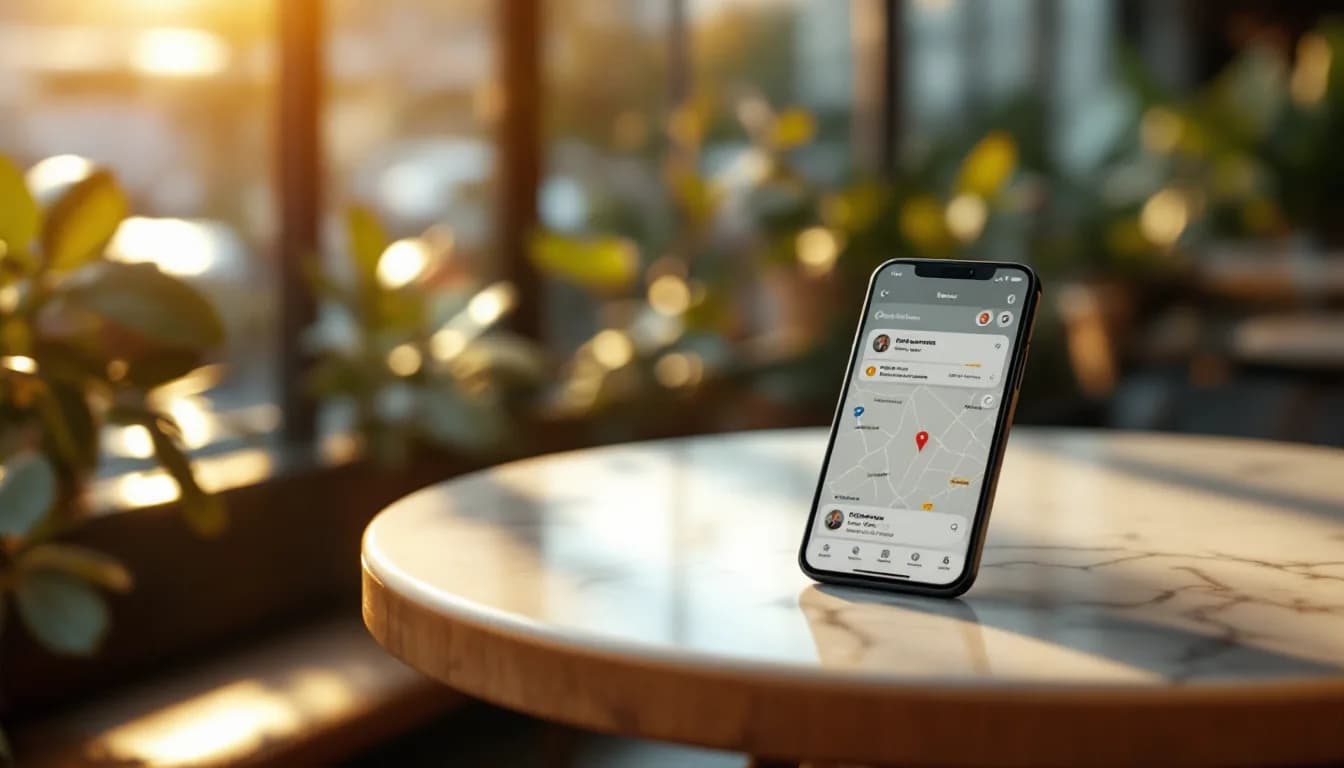
Getting your menu on Google Maps is one of the highest-leverage actions a food or beverage venue can take within its Google Business Profile. Guests searching for somewhere to eat or drink on Maps routinely tap the menu link before deciding where to go — a missing, outdated, or friction-heavy menu is a silent conversion failure at the highest-intent moment in the discovery journey.
Google Maps surfaces venue details — including the menu — during 'what's nearby' and 'where to eat tonight' searches. This is a touchpoint the venue controls only if it actively manages its Google Business Profile. Leaving it unmanaged means leaving guest decisions to chance.
This guide covers three things: the menu URL field, the native GBP menu item editor, and the practical difference between the two — including why the destination page the URL points to matters as much as the link itself.
The core argument is straightforward: the menu link field is only as valuable as the page behind it. A live, no-download digital menu converts curiosity into a visit; a stale PDF or unmaintained website page does not. MUSICDJ CONNECT digital menu is purpose-built for exactly this use case — paste its stable URL once into GBP and it does not decay.
The Three Ways Google Surfaces a Menu on a Maps Listing
Google draws on three distinct sources when displaying menu content on a Maps listing:
- Menu URL field. A direct hyperlink the venue pastes into GBP, rendered by Google as a 'Menu' button or link on the listing. This is the most controllable element because the venue owns both the link and the destination page.
- Native GBP menu editor. Google allows venues to enter sections, item names, descriptions, and prices directly inside GBP. These render as a structured, Google-hosted menu panel on the listing. Maintaining this editor is an entirely separate task from managing any external menu platform.
- Third-party aggregator data. Google has data-sharing arrangements with select menu platforms and may pull and display content automatically. Venues have limited control over this source, and data can be stale or incorrect.
The practical hierarchy is clear: the URL field is the most reliable lever because the venue controls the destination. The native editor is useful for structured content inside Google's own interface but requires upkeep that does not sync with any external URL. Aggregator data cannot be directly managed.
One distinction matters throughout the rest of this guide: updating a live menu platform behind the URL field propagates automatically to Maps visitors the next time they tap the link. Updating the native GBP editor is a separate manual step that does not sync with an external URL.
Step-by-Step: How to Add or Edit Your Menu Link in Google Business Profile
Adding the Menu URL
- Sign in at business.google.com, or search your business name on Google while logged into the owner account and manage directly from the Search result panel.
- Select Edit Profile, then navigate to the Contact or More Info tab depending on your GBP interface version.
- Locate the Menu link or Menu URL field and paste the direct URL to your menu page.
- The URL should point directly to the menu — not to a homepage, a PDF attachment, or a landing page that requires a further click to reach the menu content.
- Save changes and allow time for Google's review and propagation. Minor edits typically reflect within hours; new listing features or significant changes may take longer.
- Verify by viewing the listing in an incognito browser window to confirm the menu link appears correctly to a guest.
Using the Native Menu Editor
The native menu editor is a separate GBP tool that lets you build structured menu content hosted directly by Google. It is distinct from the URL field, and the two do not sync with each other.
- From Edit Profile, select Menu.
- Choose Add section to create a category header — for example, Starters, Mains, or Cocktails.
- Within each section, add items with a name, optional description, and price.
- Save each section. Changes here do not affect the external URL entered above, and updates to your live platform do not push changes back into this editor.
Eligibility note: the native menu editor is available primarily to food and beverage categories — restaurants, cafes, and bars. If the option does not appear under Edit Profile, verify that the venue's primary GBP category is set to an appropriate food or beverage type before investing time in this workflow.
Why a PDF or Static Webpage Undermines the Menu Link
Many venues paste a PDF link or a static webpage address into the GBP menu URL field and consider the task done. Both choices create problems that compound over time.
- PDFs require a download or a separate viewer app on mobile. This friction arrives at exactly the moment a guest is deciding whether to visit — many mobile users abandon rather than navigate a file viewer.
- A static webpage requires developer or CMS access to update. Price changes, seasonal dishes, and sold-out items remain wrong on the Google-linked page until someone edits and republishes, sometimes weeks after the in-venue reality has changed.
- Google cannot reliably parse most PDFs for structured menu data, so a PDF link gives the Maps listing no usable content for rich menu display inside GBP's native panel.
The format of the destination page directly determines whether the Google Maps menu link helps or hinders pre-visit guest intent. A hospitality-specific digital menu — mobile-first, no-download, and updatable in real time by venue staff — eliminates all three problems without requiring a web development team.
What the Ideal Page Behind a Google Maps Menu Link Looks Like
Five qualities define a destination page that earns its place in the Google Business Profile menu URL field:
- Mobile-first rendering. The majority of Google Maps searches happen on phones. The page must load quickly, scroll cleanly, and require no pinch-zooming.
- No download, no app install, no account creation. Any forced step before the guest sees the menu loses visitors who arrived from a listing with low initial commitment. A no-download web app keeps them in the flow.
- Real-time updatability by venue staff. A price change or a dish marked unavailable should be live on the linked URL within a minute — no developer required, no separate publish step.
- Readable category structure. Sections clearly delineated — starters, mains, drinks, specials — so a guest scanning from Maps finds what they need in seconds rather than scrolling an undifferentiated list.
- Value beyond the menu. A page that also surfaces Google review prompts or reflects the venue's current atmosphere — such as the now-playing track — creates a richer pre-visit touchpoint that can convert browsing intent into a confirmed decision to visit.
How MUSICDJ CONNECT Turns the Google Maps Menu Link Into a Permanent Guest Touchpoint
MUSICDJ CONNECT digital menu is a no-download guest web app that hosts the venue's live digital menu. The stable CONNECT URL is what the venue pastes into the Google Business Profile menu URL field — set once, it does not need to be changed again.
Because CONNECT is a live platform rather than a file, any update made in Backstage — a new dish, a revised price, a seasonal section added or removed — is immediately reflected on the URL that Google Maps is pointing to, with no republish step and no developer involvement.
The CONNECT guest web app surfaces more than the menu: guests also see Google review prompts and the venue's now-playing track, turning a pre-visit menu browse into a richer brand encounter that extends naturally into the in-venue experience.
Once in-venue, guests can access the guest song jukebox with PayPlay through the same CONNECT URL via QR — keeping the link purposeful well beyond the initial Google Maps discovery moment.
An AI-generated menu capability in Backstage helps venues build the initial structured menu quickly, reducing the time between setting up CONNECT and having a production-ready URL to serve as the digital menu link for Google.
The operational outcome is clean: the restaurant menu Google Maps link no longer decays because the source of truth — the CONNECT menu in Backstage — is the same system the venue uses operationally every day, not a separate document maintained in isolation.
Explore the full CONNECT feature set at /solutions/connect or begin setup at /get-started.
Keeping Your Menu Accurate: The Ongoing Sync Challenge
The most common reason a Google Maps menu link becomes a liability rather than an asset is straightforward neglect — the linked page diverges from the actual in-venue menu as dishes rotate, prices adjust, and specials change.
Venues running from a single operational platform avoid the divergence problem because there is only one version to maintain. The CONNECT URL always reflects the current operational state in Backstage, with no separate document to keep in step.
For venues maintaining a POS menu, a printed menu, and a digital menu as three distinct documents, a clear process is essential:
- Designate one person responsible for all menu updates.
- Establish a standing practice of updating the digital menu simultaneously with any in-venue change.
- Add a calendar prompt at the start of each season or whenever the printed menu is reprinted.
One important distinction: the native GBP menu editor is a separate, Google-hosted copy that must be manually kept in sync — updating CONNECT does not push changes into GBP's native editor. The URL field, however, always points to whatever is current on the live platform, which is why it is the more durable mechanism for maintaining accuracy.
Seasonal menus and limited-time offers should be clearly marked with availability notes so guests who find the Google Maps link outside peak service hours still see accurate and useful context.
Optimizing the Full Google Business Profile Alongside the Menu Link
The menu link sits within a wider GBP listing. Its impact multiplies when the rest of the profile is complete:
- Accurate hours — including holiday and seasonal variations — so guests who tap the menu link also see correct opening times.
- Current photos of the space and signature dishes, which can appear alongside native menu items when added to GBP.
- A clear business description reflecting the current cuisine style and any notable features.
- Correct primary and secondary categories — category selection determines which GBP features are unlocked. A 'Restaurant' or 'Bar' primary category activates the native menu editor; verify the category is accurate before investing time there.
Google Posts can reinforce menu updates — a short post announcing a seasonal menu change or a new dish can reference the menu link directly, generating renewed engagement from guests who follow the listing.
Responding to reviews that mention specific dishes signals to Google that the listing is actively managed and provides useful context for guests reading reviews before they tap the menu link.
Photos of specific dishes, when added to GBP, can appear alongside native menu items — visual cues paired with a clean, live menu link create a stronger pre-visit impression than either element alone.
The sequence to implement everything covered in this guide is simple: build a live digital menu in Backstage, copy the stable CONNECT URL, and paste it into the GBP menu URL field. The Google Maps listing is then connected to an always-current guest touchpoint from that point forward. Get started with MUSICDJ or review the full CONNECT feature set at /solutions/connect.
Menu Link Destination Types: A Practical Comparison
| Dimension | PDF Link | Static Webpage | Live Digital Menu (CONNECT) |
|---|---|---|---|
| Mobile experience | Requires download or external file viewer on every visit | Varies by site build quality; often not optimised for small screens | Mobile-first; opens directly in the browser with no extra step |
| Guest friction before viewing the menu | High — an extra step on every device, every time | Medium — depends on how the page was designed and maintained | Low — menu visible on first tap, no barriers |
| Update process | Re-upload the file; re-paste the link if the URL changes | Developer or CMS access needed; a separate publish step required each time | Staff update in Backstage; live on the URL immediately with no publish step |
| Risk of showing outdated content | High — the file version is managed separately from in-venue reality | Medium to high — the republish step is frequently delayed or skipped | Low — a single operational source; no separate document to maintain |
| Google rich-snippet eligibility | Minimal — Google cannot reliably parse PDF content for structured menu data | Varies by page markup and structure | Standard web page; eligible for Google's normal page assessment like any website |
| Additional guest touchpoints beyond the menu | None | Depends entirely on the site build | Google review prompts and now-playing track surfaced within the same URL |
Pyetjet e shpeshta
How long does it take for a menu link to appear on Google Maps after I add it to GBP?
Google typically reviews and reflects minor profile edits within a few hours, though new listing features or significant changes can take longer — sometimes up to a few days. Check the listing in an incognito browser window after saving to confirm the link is live for guests.
Can any type of business add a menu link to Google Business Profile?
The menu URL field is available to most business types, but the native GBP menu editor — where you enter structured sections and items — is restricted primarily to food and beverage categories such as restaurants, cafes, and bars. If the native editor does not appear under Edit Profile, verify that the venue's primary category is correctly set to a food or beverage type.
If I update my digital menu on MUSICDJ CONNECT, does the Google Maps listing update automatically?
Yes, in the sense that matters most: guests who tap the menu link see whatever is current on the CONNECT platform at that moment, because the URL points to a live page rather than a static file. There is no separate publish step. Note, however, that changes to the CONNECT platform do not push into the native GBP menu editor, which is a separate Google-hosted copy that requires manual upkeep.
Does MUSICDJ CONNECT require guests to create an account or download an app?
No. CONNECT is a no-download guest web app — guests tap the menu link from Google Maps and the menu opens directly in their mobile browser with no app install, no account creation, and no login required.
Should I use the native GBP menu editor or just the menu URL field?
Both serve different purposes and neither replaces the other. The URL field controls what guests see when they tap your menu link — make this point to a live, always-current page. The native editor populates structured menu content inside Google's own listing panel and must be maintained separately. For most venues, the URL field is the higher-priority task because it directly controls the guest experience.
One URL. Always Current. Connected to Every Guest.
Paste your MUSICDJ CONNECT URL into Google Business Profile once and your Google Maps menu link stays accurate every time you update in Backstage — no republishing, no developer, no decay.
Get Started with MUSICDJ